Showing posts with label Digital Illustration. Show all posts

Monday, September 9, 2013

OS X 10.9 Mavericks - Concept Art

You might have heard of Apple's latest OS (operating system) being released soon! I can't tell you how excited I am to get the new OS X 10.9 better known as Mavericks. So let's start by going back in time and explaining Apple's revolutionary operating systems.

Since OS X 10.0 launched in 2001 Apple only worked it's way up the ladder with ahead-of-time technology to reach the potential of the OS which we have today. It was a challenge to be ahead of the game competing with Microsoft Windows, so Apple had to come up with a marketing strategy to promote their OS. It all started with the branding of the OS promoting it with big cat names. Here is a timeline of the names since 2001;

(1)    
Mac OS X 10.0  :  Cheetah
2001
(2)
Mac OS X 10.1  :  Puma
2001
(3)
Mac OS X 10.2  :  Jaguar
2002
(4)
Mac OS X 10.3  :  Panther
2003
(5)
Mac OS X 10.4  :  Tiger
2004
(6)
Mac OS X 10.5  :  Leopard
2006
(7)
Mac OS X 10.6  :  Snow Leopard    
2008
(8)
Mac OS X 10.7  :  Lion
2010
(9)
OS X 10.8  :  Mountain Lion
2012
(10)
OS X 10.9  :  Mavericks
2013

As you can see that Apple has ran out of cat names, and I think it is about time. I mean how long would they have gone with it. The lion is the kind of the jungle, I doubt that a mountain lion is ranked higher. Anyway to get to Mavericks. It is actually very clever, the latest OS X is named after the place of birth of Apple, Mavericks - California. This will be a new era for Apple's OS naming it after landmarks and I think it's pretty cool. But to make this more interesting I want discuss the new OS and what it contains.

We all are familiar with the OS interface? if not, see the list below;


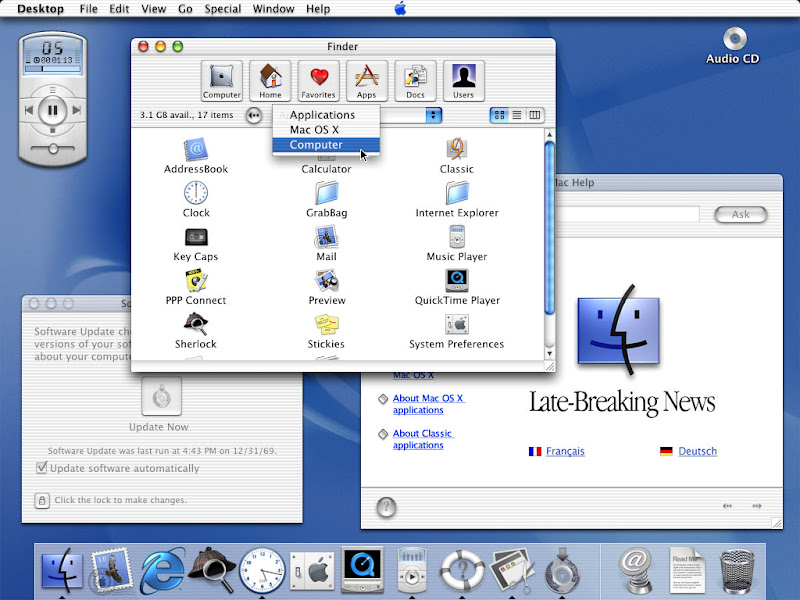
OS X 10.0 ⇢

OS X 10.1 ⇢

OS X 10.2 ⇢

OS X 10.3 ⇢

OS X 10.4 ⇢

OS X 10.5 ⇢

OS X 10.6 ⇢

OS X 10.7 ⇢

OS X 10.8 ⇢

OS X 10.9 ⇢

Looking at this list you notice that there hasn't been much change to the interface or where the main controls are place. The task bar is always at the top and the dock is at the bottom. That is how it has always been and probably will stay for the time being. The visual aspects of these components such as the windows and dock just gets enhanced with every operating system keeping up with the new technology.

Apple don't want to follow in the footsteps of Windows latest operating system Windows 8 where they removed the start button and made it more tablet based. I mean they've altered the entire user interface and changed the way people uses a PC! Even though Macintosh also added tablet features gathered from the iOS platform (e.g. Notification Centre and Launch Pad) they've done it in such a way that it is a preference and not a requirement. 


Mac OS X 10.9 - OS X Mavericks

So what is new that makes this OS so popular that people are raving about. Is it maybe the fact that you get new features like reading books on your Mac? Is it because you need to check Apple Maps instead of Google Maps? or is it the new filing system with new added security features? I sure hope that Apple decides to tweak the interface design a little, not so much as the Windows 8 fiasco but enhancing the visual aspects like they did during 2001 and 2006.

Even though OS X is as minimalistic as it may come, I think it could be enhanced. With the upcoming iOS 7, which will be the best and most beautiful OS for mobile Apple has ever designed,  I still feel that migrating these design elements of the iOS 7 with the OS X Mavericks will be another mile stone on Apple timeline. Just look at how beautiful transition that happened during 2001 up to 2012. I will write another post about the iOS 7 once it has been released which hopefully will be on the 10 September at the conference in Cupertino.

I did some design of my own! Extracting some elements of the new iOS 7 I migrated it with the OS X interface to give the sense of translucency which is part of the new look and feel. I've added all the new neat features such as the labelling and tabs in the finder window. The intention for the frosted windows are that it changes depending on your wallpaper. I reverted back to the first official dock with a more modern feel in honour of the first OS X. In the right hand corner on the dock I've added a new feature where you can scroll between docks. In my experience I always need to add stuff to my dock but only when I use them. Wouldn't it be cool to add different sets of docks which you can switch to design or editing or writing whenever you like? Last but not least I made some small changes to the classic Apple folder design. I touched it up by making it white with the apple logo in the top corner to give it that special touch.

So we will have to wait and see whether Apple will change the interface a little for the big reveal of the Mavericks OS, by the look of what they posted on their site, I doubt that they will make changes. But hey, it's always nice to imagine "what if."

⇢ Flat translucent dock with new OS X icons. Dock refers back to the first OS X 10.0 Cheetah that sits from edge to edge on your screen.

⇢ Frosted translucent Finder windows to makes your workspace just better looking than ever before. Included with colour tags to find your work easier and don't forget those new Finder tabs to open multiple windows in one window like in Safari.


Rumour has it that the new OS X Mavericks will be released at the end of October 2013! Hoped you guys enjoyed the concept art, tell me what you think down bellow. Like my page, Like my blog and see you guys on Friday at 10:00 SAST for another exciting post.

Till Later!
*F

Friday, May 31, 2013

LIVE Campaign: ODF


In mid 2012 a group of us received a project looking for a cause that we as young graphic designers can help support. The criteria was to find a NGO who are struggling to find support and help them out buy designing a campaign which will turn out to run as a live campaign if the NGO is willing to put their funds towards a campaign.

Our cause we chose was the Organ Donor Foundation (ODF) which helps donate organs to patients in need of organs. We saw this as a potential problem in South Africa because of the lack of donors and the need for organs. We approached the ODF and proposed what we want to do, they where excited to help and supported us all the way throughout the process of the project.

After 6 weeks of planning, designing, and refining some minor details, we presented the final proposal to the ODF and to our department. The concept of the campaign was a success, unfortunately the ODF couldn't run the campaign because of limited funds. In spite of actually running the campaign, we got to experience what it is to plan, design, and present a campaign proposal. Working with the ODF was amazing and we gained experience in working with live clients and understanding the principles of communication.

So here is how it rolled out;

#1: Poster for the 7 day campaign. What the campaign is all about and what activities will happen in 7 days time.
*Click on image to enlarge

#2: Created a hypothetical website that will be launched before the campaign for the campaign and future use. This would be the face for the campaign but still linked to the ODF's official website.

*Click on image to enlarge

*A mobile site will also be launched which will be accessible to a larger audience and draws more traffic to the website self.


#3: We also designed T-Shirts with some humorous quotes to lighten the seriousness of the topic.
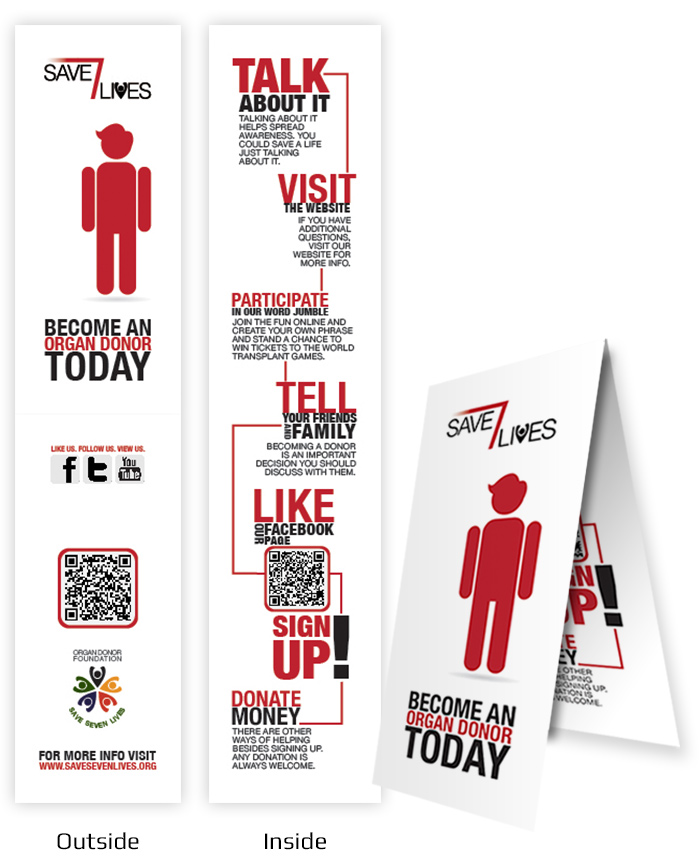
#4: There is also a brochure that has a magnet at the back so you can post it on your fridge and be reminded of the cause. But to make it more interesting to have is it can be used as a bookmark, you can fold the brochure over the edge of you page, and be reminded of the cause when opening a book.

#5: Last but not the least, we made 2 videos which shows how you as an individual can save 7 lives one day by signing up as an organ donor. We made use of silhouettes so it applies to everyone out there. It is also effective because any person can relate to it, and of course some humour was incorporated to keep the audience attention and make them feel good.

- KINETIC TYPOGRAPHY -

- WE ARE ALL CONNECTED VIDEO -

This was an amazing project and one of my best team efforts I ever dealt with. I enjoyed it tremendously even though we didn't sleep much! I want to give recognition to my team members; Nadia, Gina, and Robert for working together on this project. We are a well oiled group which can take on any challenge.

So please sign up and become an organ donor! Even from 6 feet below, you can make a difference to 7 above.

Till Later!
*F

Monday, July 30, 2012

Data Visualization: Unemployment

Hi guys! So this is the first time for me to design an infographic.

This project was aimed at collecting raw data from a social issue of choice. I choose to unemployment in South Africa because it is such a big issue. Every South African knows this a massive issue but do they really? That is why I thought to bring this issue to front and make people more aware of it.

I went with a clean vector look so it is easy to read but also to make it look professional, because I think we have to address this issue professionally and quite serious. After a lot of research I narrowed down my questions and kept it straight to the point and easy to understand as well. Here is the final, check it out and feel free to tell me what you think;


Till Later!
*F

Monday, July 23, 2012

WebDesign Training

We had website training for a week and a half. The first week was hell, I had to learn coding which wasn't so bad, but for a designer like me who is really not a fan of maths I admit, it's not fun. After that week our trainer told us that there is an easier way to create websites using the design interface... without code... SERIOUSLY!!! So we basically it was a waste of time. I know coding is cool to know and you can always go back and fix something if you have problem but I feel that for that limited time we could have gotten more advance training to be better in designing websites.

Anyway! I should probably stop complaining because I am good in what I do and I strive to do better. So I went and did more research and improved my web design skills. Here is my final website for the project. Enjoy!


*(P.S. this is not a live website, this is a screen grab)
Till Later!
*F

Friday, July 20, 2012

TrashBack Urbin Design Competition

A few people from outside tech came to brief us on competition entires. This was integrated into our term schedule and was going to be marked as a normal project, and well be entered for the competition. We this was the first time we worked with live clients. It was a real challenge for everyone and a big adjustment from the usual projects. But the biggest challenge was signing up for one of the 3 competitions...

There was 3 options; TFG Gift Card Design (Illustrations), TrashBack Project (Design Techniques, 3D objects), and Music Video (Flash animation, video). As you can imagine EVERYONE wanted to do the TFG Gift Card Design because hey, we are graphic designers that loves illustrations and layout. But of course there was a limit to each competition... Man was that an interesting sign up... Luckily no one got hurt but there was a vibe.

SO I got the honor to NOT doing what I wanted and got placed on the TrashBack Project. I must admit, it was more fun then I imagined and I enjoyed it. I think it was one of those projects that just pulled me out of my comfort zone to try something different. Here is the final product.


Unfortunately I didn't get nominated and well I didn't win, but I can proudly say that two of my friends won from our institution! Check them out on the TrashBack Website.
Till Later!
*F

Sunday, March 18, 2012

Make Some Noise - Limited Edition Merchandise


Did an awesome project a month ago that we needed to think of an issue (or personal issue) and make it aware on a poster. I chose puma as my sponser and designed a T-shirt as my limited edition object. For this limited edition object I had to designed the packaging as well.

My issue is reckless driving and people who speed. My target market was urban youth. The style I used is a graphic style that is a very common with race car stickers. I illustrated the whole graphic and used a colour pallet of two colours, black and red. I illustrated two dices flinging towards the audience because of a car crash. The tagline is at the bottom and is illustrated into a odometer. The 'C' of the dice is flipping which changes the tagline to 'Wanna Dice?' to 'Wanna Die?'

This was a really great project and I am thinking more of going into the packaging and printing profession!

Till Later!
*F


Sunday, February 12, 2012

Began with a Bang

So I guess third year is exactly how it is going to be in the design industry... It's challenging and a lot of work! Luckily if graphic design is our passion it is fun!

We started off with this awesome group project where we got an item that was produced in the Cape and we had to research and interview the product's think, design and production process. My group got The Big Issue magazine that is only sold on the streets of Cape Town. We only got a week to find information and turn it into a A0 poster.

This project was great but really challenging because of the group work situation. We were 16 in a group and let me tell you, it is not easy working in a group this size! Luckily everyone was willing and gave it everything and we finished in 4 days! Thanks to all my group members starting off the first year with this great energy and positivity! Hope this whole year will be like this.

Here is the final product. Enjoy!
Till Later!
*F


Monday, October 3, 2011

Apple Wallpaper

Hey guys. This is a random post but I just want to share my creations with everyone. I got bored this afternoon, grabbed the pentool in Illustrator and drew the Apple logo. I needed a new background for my mac and decided to make myself one in Photoshop. Here it is; ready to view and download to put as a wallpaper on your PC desktop.

[Screen resolution of image - 1440 x 900 pixels]

!!!More photographs will be uploaded during this week. Be sure to check it out!!!

Till Later!
*F

Sunday, September 25, 2011

1st Campaign: Litter in City

At last my campaign is finished and I would like to share it with everyone!
I am quickly going to summarize my topic just to refresh everybody's memory about what I did last term.
I had to choose a topic that is about any social awareness in South Africa. The campaign consists out of 4 components which a brochure and Guerilla marketing technique is compulsory. The other two can be anything related to your topic. I choose to design a double spread magazine layout and a poster because it suits my target market.

My Topic: Litter in Cape Town!
I want to make people aware of the litter in Cape Town and how it effects everyones lives. My call to action is to motivate people to pick up litter lying around them and throw it in a bin near them or keep it in a plastic bag and throw it away when approaching a garbage bin.

My first element is the poster:


My second element is the brochure:


My third element is the magazine layout:


My last element is the Guerilla technique - Sticker:


So there you have it. After almost 6 weeks of working on this 2 week project and changing a lot of things before the last minute of hand in, I luckily finish this and looking forward to the next exciting project.

Till Later!
*F

Tuesday, June 14, 2011

Snowy Text Photoshop Tutorial

Hey guys!

Do you ever wonder how people does snow effects in Photoshop? Well here is a Tutorial  for you guys to start of the winter. This tutorial is about how to make a metallic text with snow lying on it. Follow 8 easy steps below!

STEP:1 - Creating a new page.
Open your Photoshop and make a new page with the following specifications like on the picture:
- Width: 800 - Height: 400 - Resolution: 150 - Name the document SnowyText.


STEP:2 - Creating a new layer.
Now make a new layer in the layer tab and rename it mybackground.


Okay, now that everything is set up lets get started!

STEP:3 - Selecting open space
Start by using your Rectangular Marquee Tool (Shortcut - M) click and drag it all over your new clean page. N.B! Make sure you are on the mybackground Layer!


STEP:4 - Adding color.
Now that you have selected the entire clean space take your Paint Bucket Tool 
(Shortcut - G) and go to your color picker and choose a light blue color (# 71afe6).
After choosing your color click with the Paint Bucket Tool onto the selected area.
AGAIN! Make sure you are on the mybackground Layer while doing this!
*Select the Rectangular Marquee Tool again and right click and select deselect.


STEP:5 - Adding text.
Now we need to add text and make it metallic. Choose the Type Tool 
(Shortcut - T) and click anywhere on the page and type Snowy. You will notice that on your layer tab a new layer pops up. When adding a text Photoshop creates a new layer.
Use the following specifications:
- Font: Helvetica - Style: Bold - Size: 60pt - Color: # e8e8e8 (white/grey color)


STEP:6 - Making text look like metal.
Now we want to make the text have a metallic effect. Double click the Snowy layer which has the text on. A Layer Style window will pop up where you can create an effect/style.
+ 1st we want to make the text looks realistic (meaning 3D) so we have to select the Bevel and Emboss tab on the left hand side. Use the following specifications:
- Size: 5 - Soften: 2 - Angle: 120 - Altitude: 30 - Shadow mode > opacity: 50%


+ 2nd we are going to add the metal effect by selecting the Satin tab. Use the following specifications:
- Opacity: 56% - Angle: 19 - Distance: 8 - Size: 10


+ 3rd we need to add a stroke to give the text a feeling of depth. Use the following specifications:
- Size: 1 - Opacity: 10%


STEP:7 - Setting up Snow Layer.
Okay now we have a nice metallic text. We now need to set up the layer for the snow. It is very easy, first make a new layer (ALWAYS work on new layers for safety purposes) and rename it Snow.

Double click the Snow layer and the Layer Style window will pop up again. We want to add an inner glow and bevel and emboss style to make the snow look realistic.
On the Inner Glow tab use the following specifications:
- Opacity: 65% - Choose the first color and make it black - Choice: 0% - Size: 2

On the Bevel and Emboss tab use the following specifications:
- Depth: 100% - Size: 1 - Soften: 4 - Angle: 120 - Altitude: 30


STEP:8 - Applying the snow style.
After the set up of the snow layer you need to actually draw the snow now by hand. Select your Brush Tool (Shortcut - B) and choose the second brush (Hard round brush) and make it's size 10 px.


Take the brush tool and make sure that you are on the Snow layer. Start off by making your brush smaller and bigger to the size that is suitable for you. Start smudging the brush over parts of the text that you feel the snow should lie on. As you can see, it is very easy and it goes quick when you get into the smudging mood!


So, I hope this tutorial was helpful! Check in for more tutorials! Please rate and leave comments if necessary.


Till Later!
*F